Your questions answered. Right here. Right now.
What type of services do you provide?
Well, that is an easy one. We provide indoor golf simulators for your use. Once a member, you can use the simulators a certain amount of hours each month, based off the membership you choose to purchase.
All you need is yourself and your golf clubs. During your reservation, you can use the balls provided (or your own). We do have stationary tee’s for use when using the driver, as personal tee’s seem to break and also fly all over the place when used. Please use our stationary tee’s for safety reasons.
What do I need to bring?
You can follow along with these pictures, as they should end with you becoming a member of Golf Game. There are only a few steps in getting your Golf Game membership today! Please read left to right with the corresponding pictures below.
How do I sign up so I can golf?

1) Click “Sign-Up/Book” in the top right of the page.
2) It’ll take you to “YourGolfBooking.com”. Click on the top right “Menu” button.
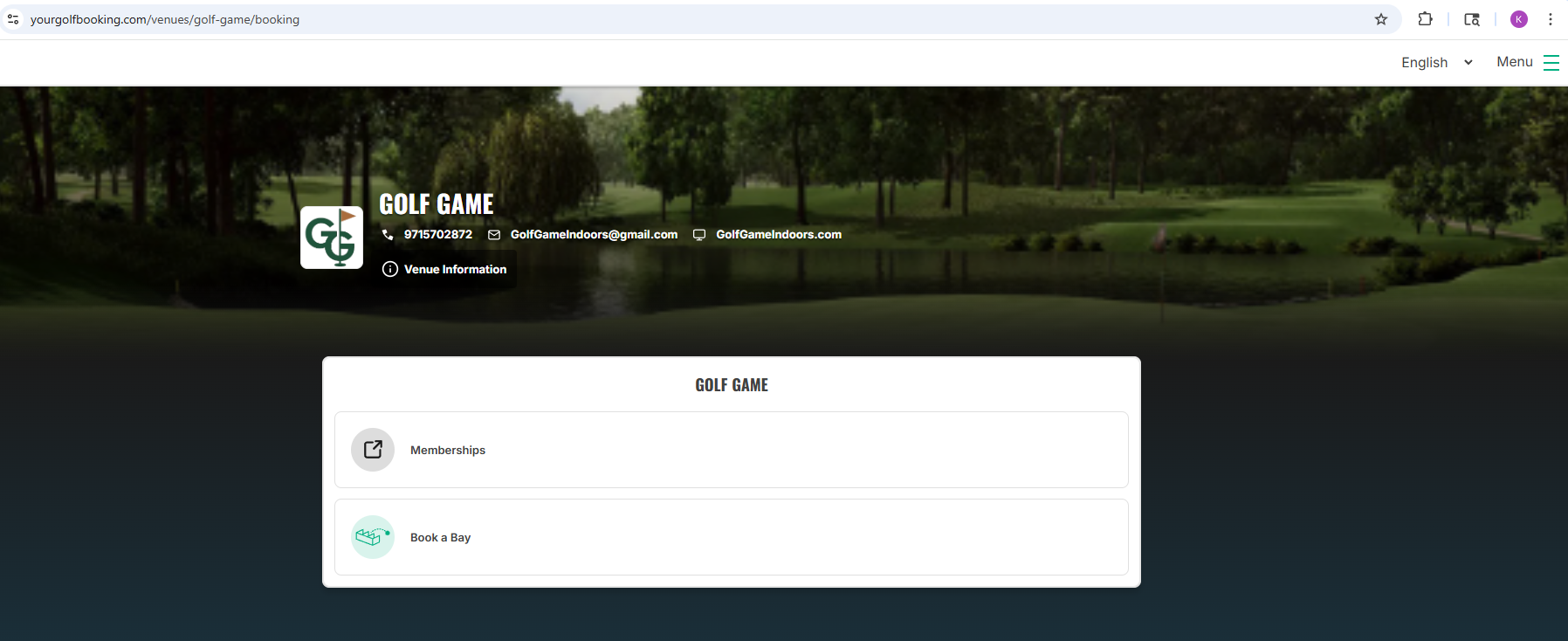

3) Either Log In, or Sign up and create an account.
4) Once logged into “YourGolfBooking.com”, click on “Membership”.
5) After figuring out which membership you want, click on the corresponding “Sign Up” button. In the example, the “Bronze Membership” was selected. Click the “Next” button to continue.
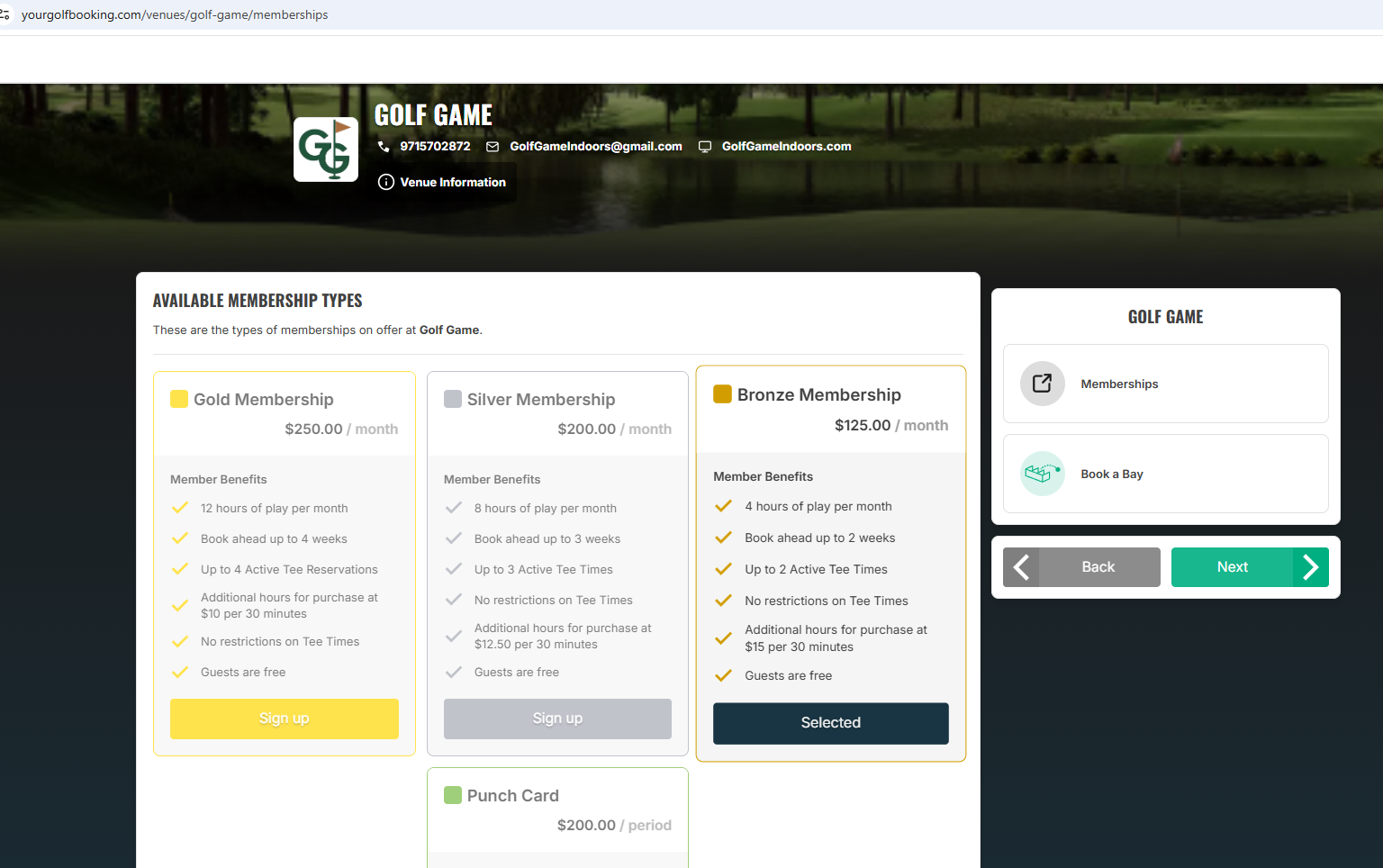
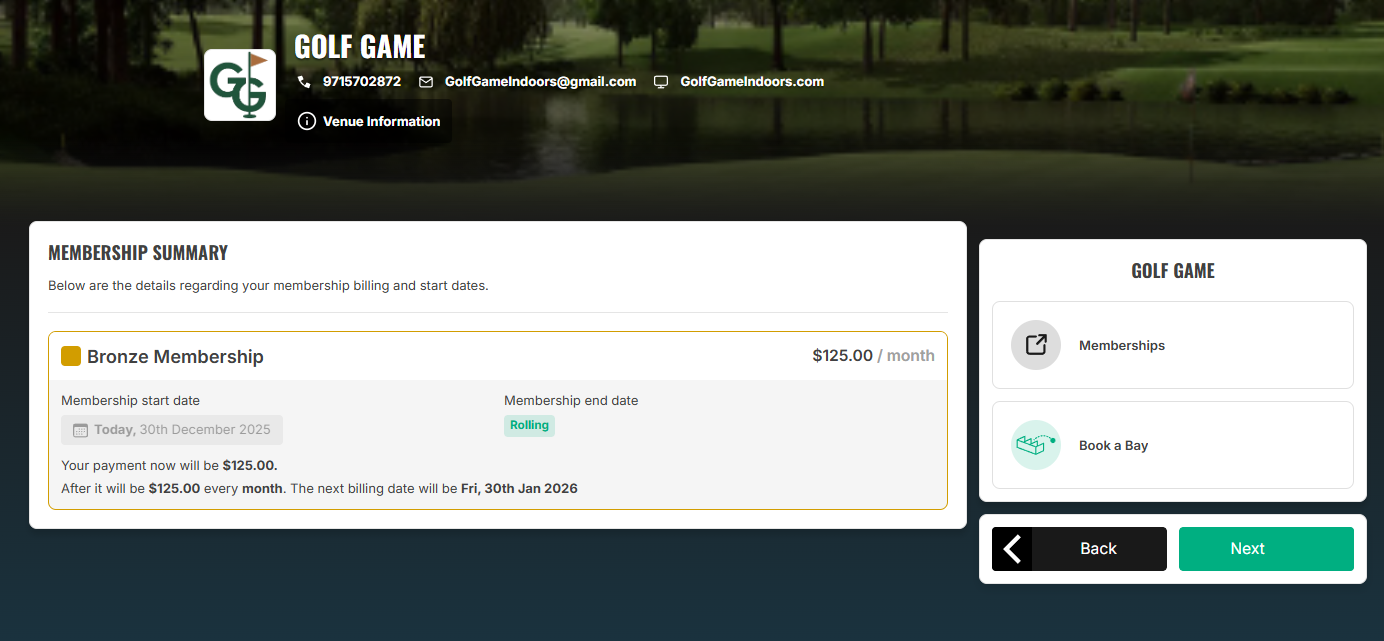
6) Review the membership. It will indicate that the membership will start today and the price which will come out every month. If agreed, click “Next”.
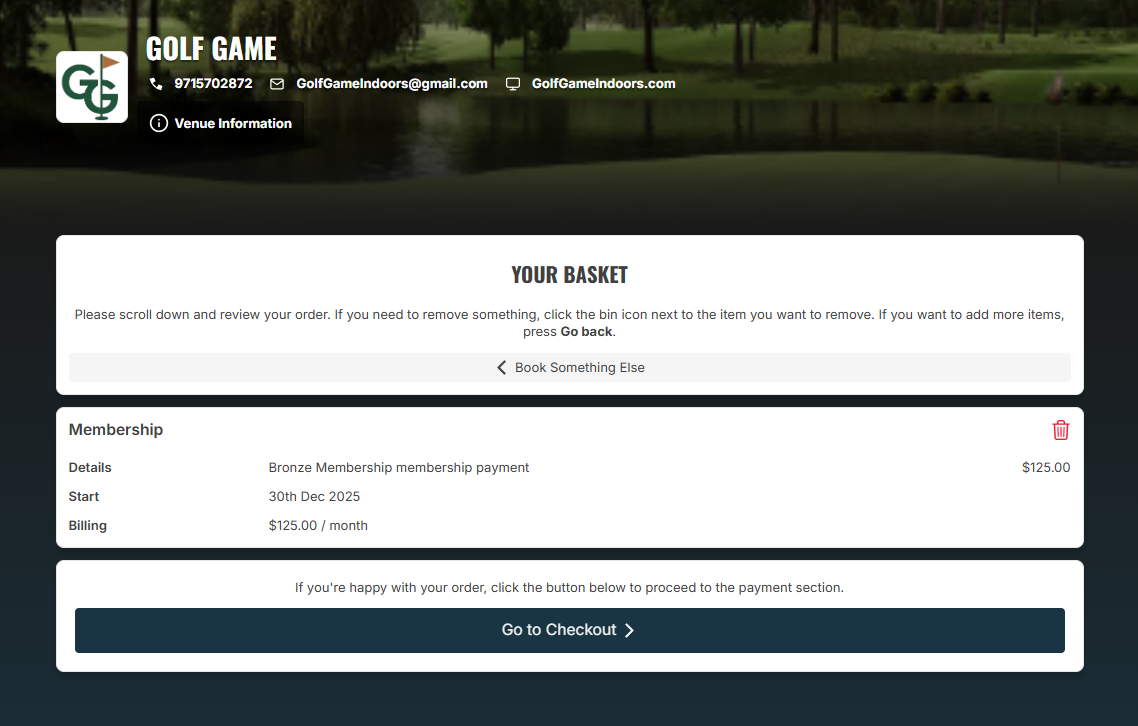
7) Review the membership again. If you decided to change the membership, you need to click the little red trash can icon to remove the selected membership from the basket.
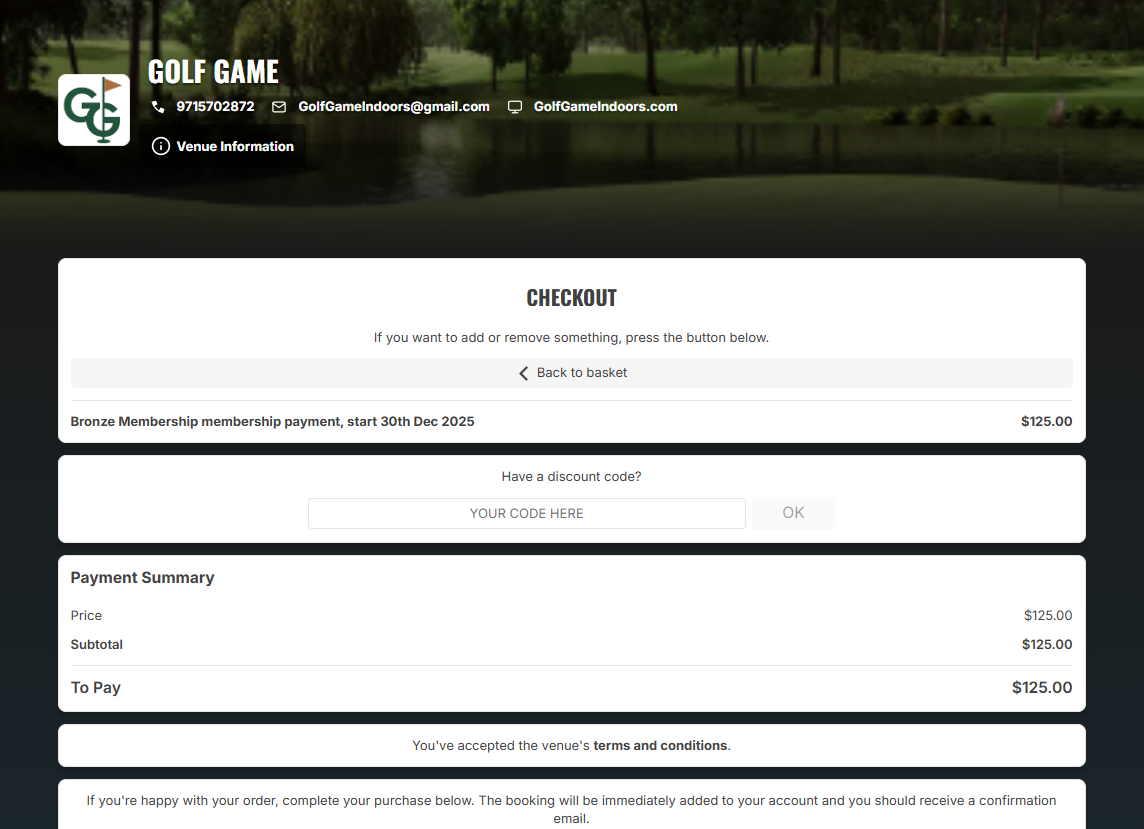
8) Finish up the membership purchase by doing 1 last review, accepting the terms and conditions, and then entering in your payment information.

It’s really simple once you do it once or twice. Just follow the following steps for a guided tour on making a reservation.
How do I reserve a tee-time?
1) Click “Sign-Up/Book” in the top right of the page.
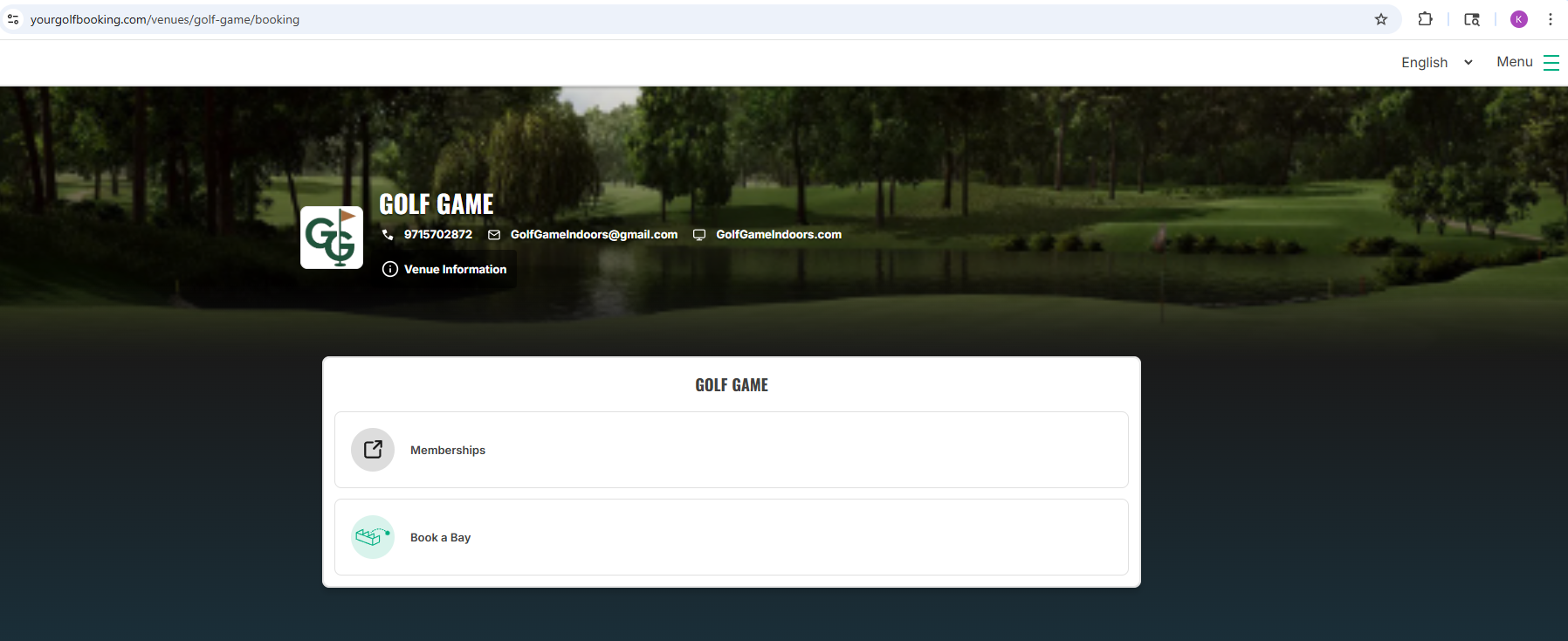
2) It’ll take you to “YourGolfBooking.com”. Click on the top right “Menu” button.
3) Either Log In, or Sign up and create an account.
4) Once logged into “YourGolfBooking.com”, click on “Book a Bay”.
5) After selecting the left reservation (see the text below each reservation type to see the limitations of them), click on the “Next” button on. You can also add Guests here (Don’t worry, guests are free and even if you forget, when you show up on site, you can always add guests when you show up)
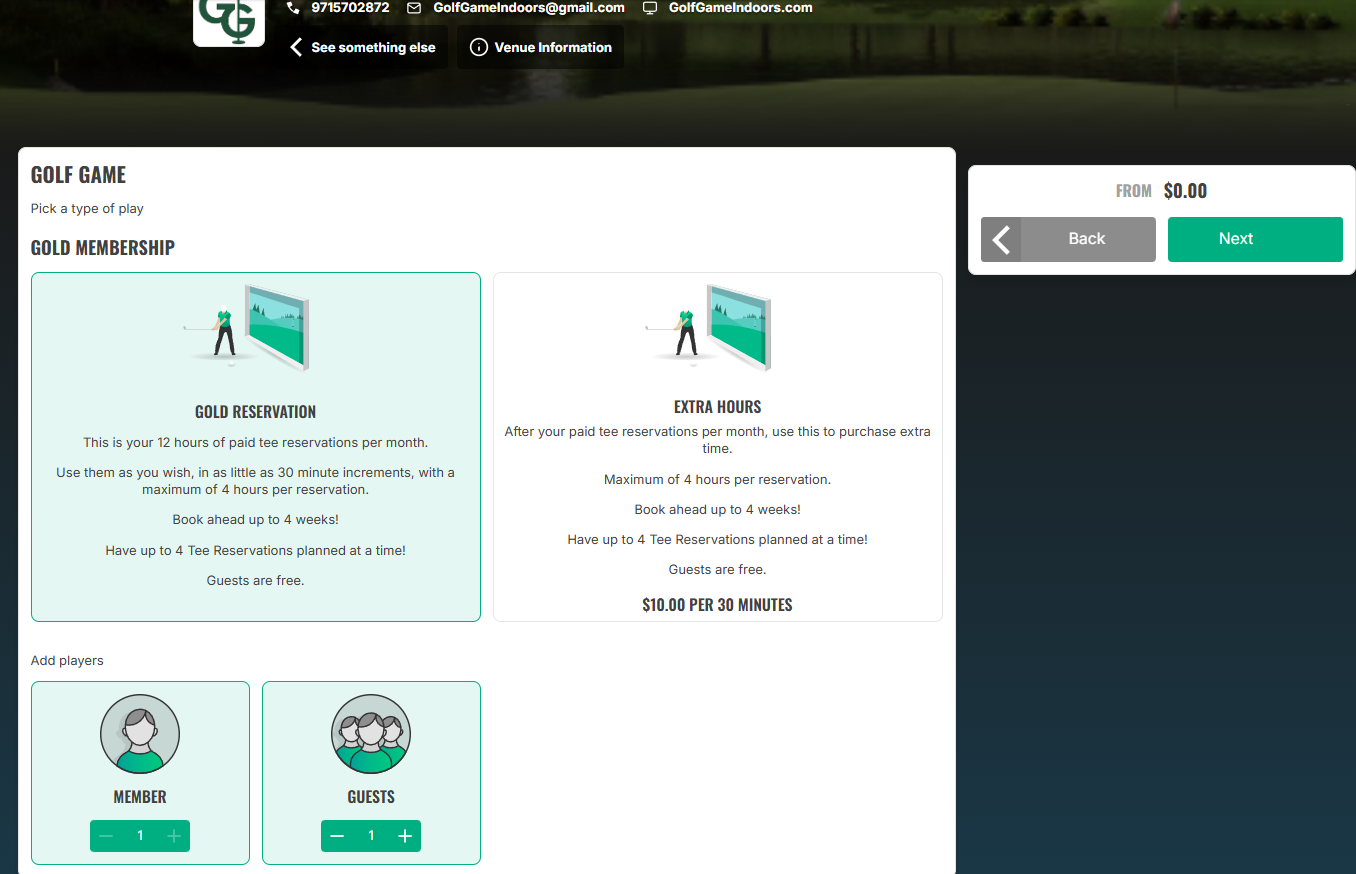
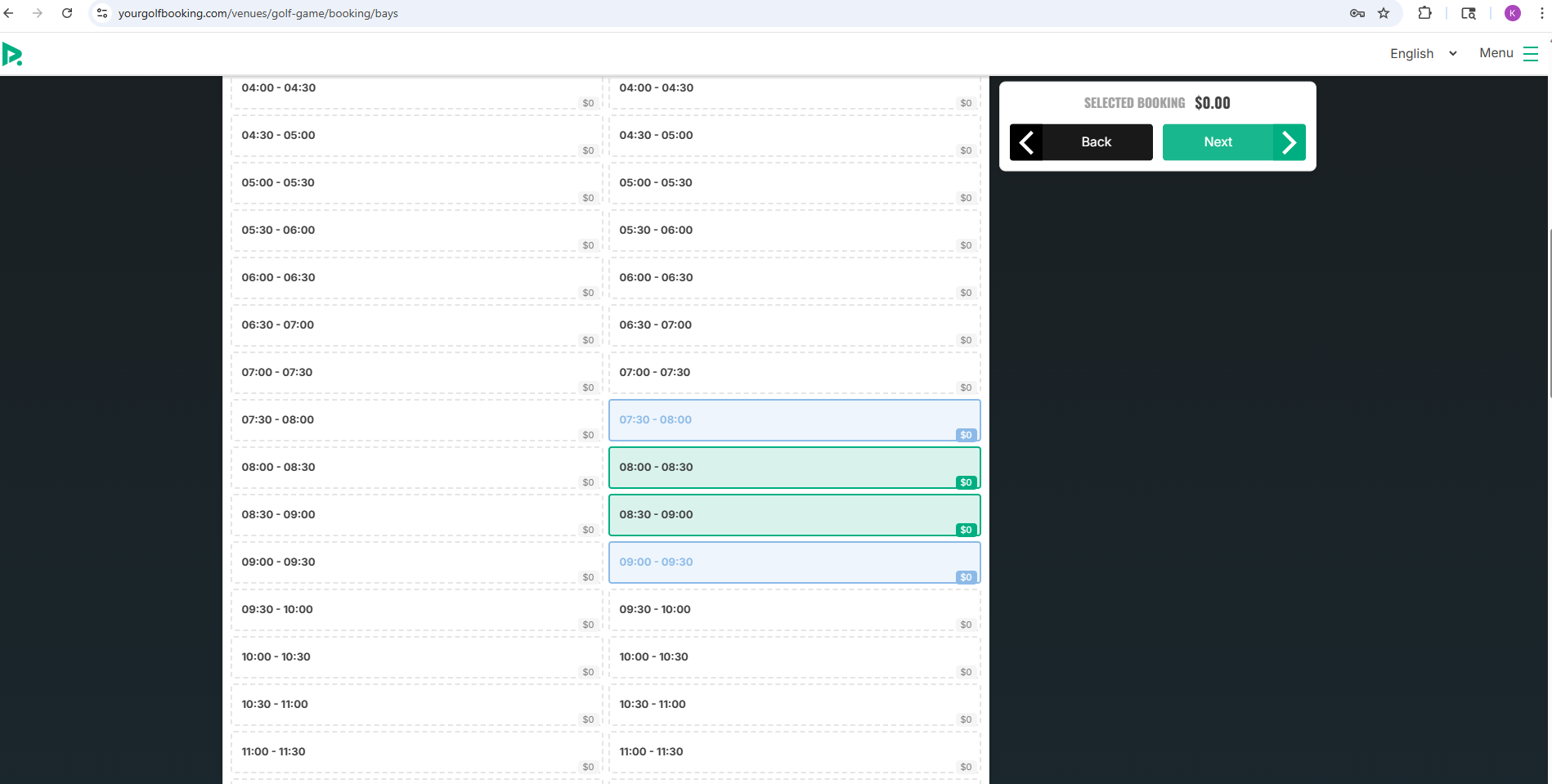
6) After indicating how many people will join, you then can select the tee reservation times. Remember, you can book out a few days/weeks, depending on membership level. Once your time is selected, click “Next”
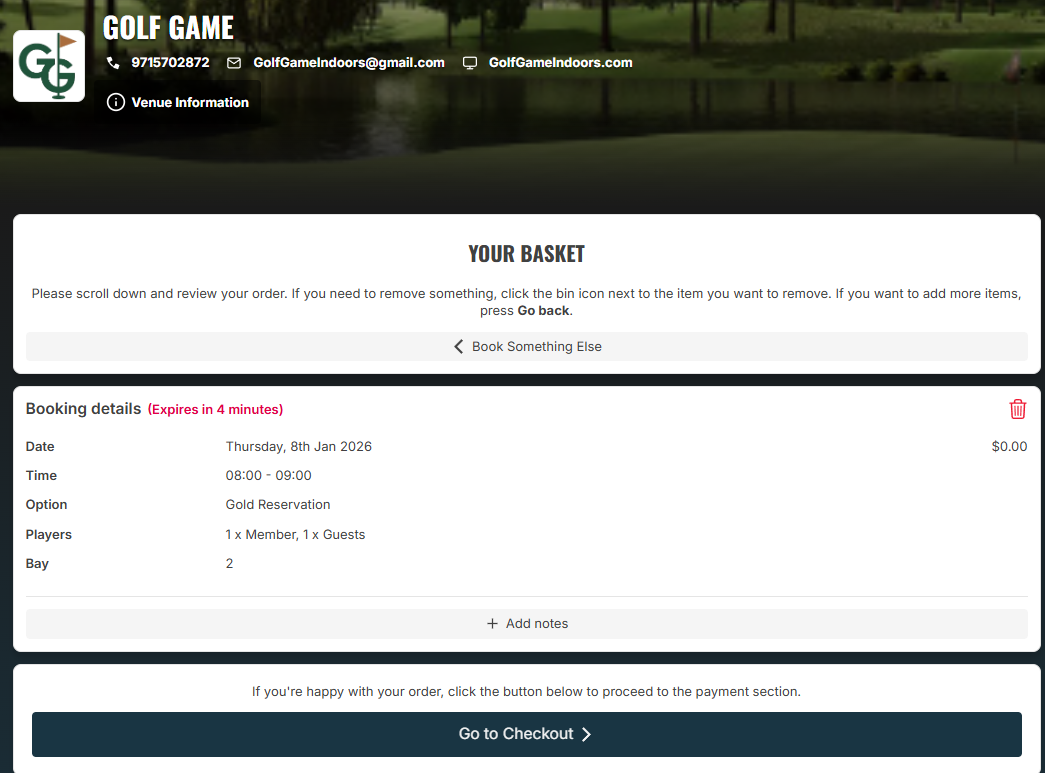
7) You’ll then need to check the reservation. If you want to change it, you need to click the red trash bin icon. Click “Go to Checkout” if everything looks good.
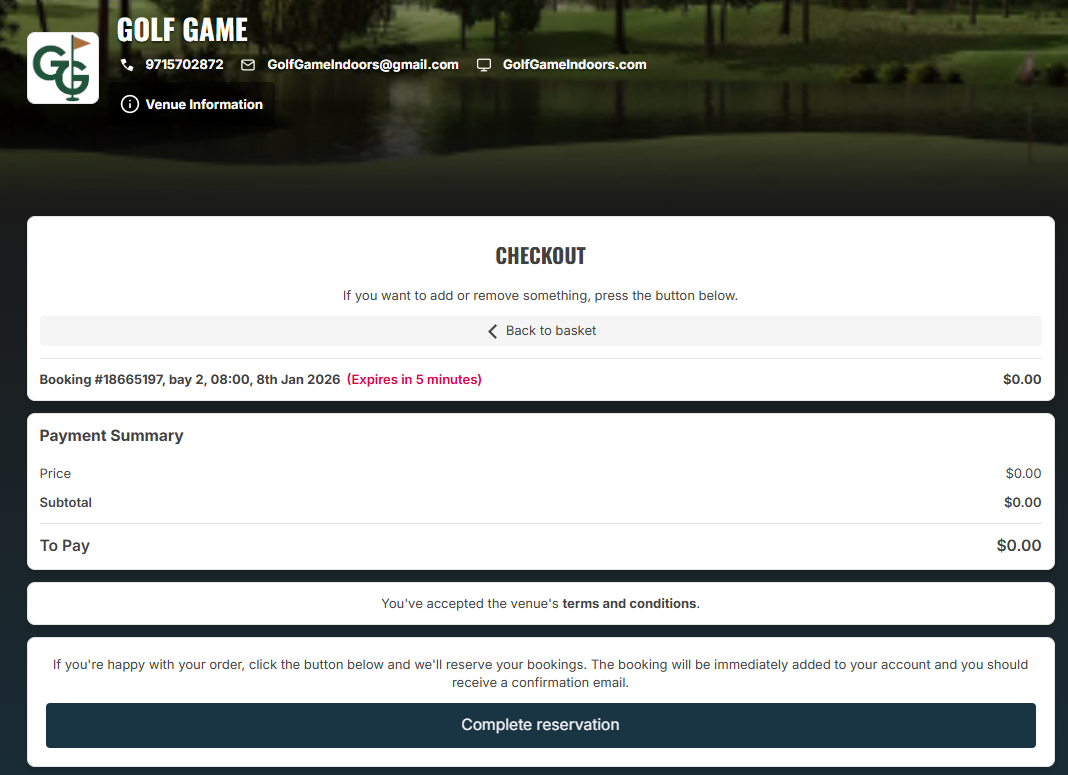
8) You’ll still have a chance to change your tee reservations. If it looks right, go to “Compete reservations”. If you are booking “Extra Hours”, then you’ll probably have an amount in the “To Pay” row".
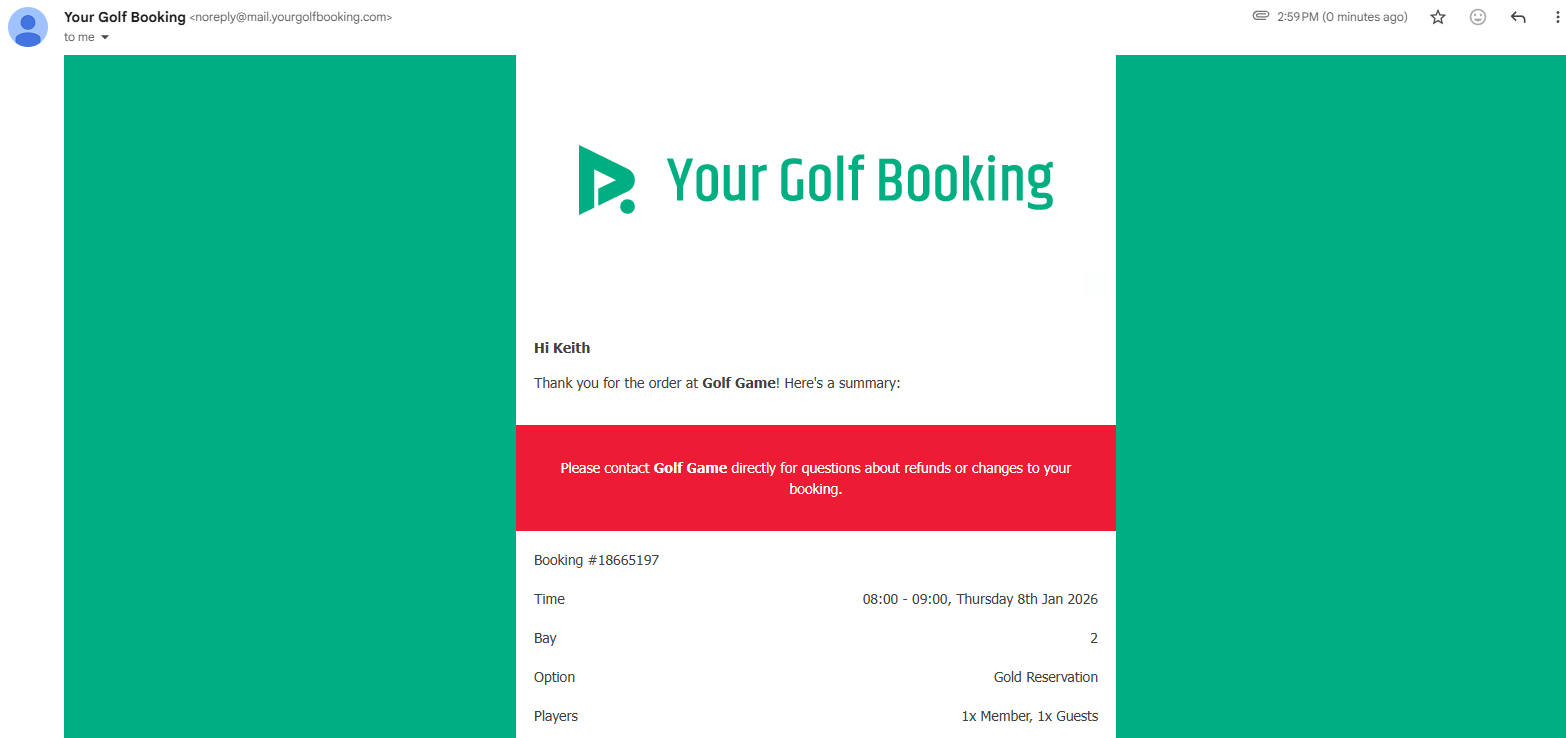
9) Your reservation is now complete. You will receive an email from YourGolfBooking with confirmation information. In this email, there will be a door code, along with a code that will unlock the chosen bay at the times you selected.

How do I enter the facility and start golfing at my reserved tee time?
1) Once you receive an email from YourGolfBooking with the confirmation information, that email will also contain the temporary door code, along with the bay unlock code.
Once you have reserved a tee time, you’ll receive a confirmation email. In that email, you’ll have a temporary door code and a temporary pin to unlock the reserved bay at the time you selected. The door code will let you in a few minute early so you can be ready for your tee time.
2) Use the temporary door code to unlock the front door a few minutes prior to your tee time. Use the bottom right button as the “enter” command. Please note, the door code will continue to work while your hitting session is active. Once your time is up, the temporary door code will stop working. Do NOT leave valuables in the building after your session, as the code to get in will not work.
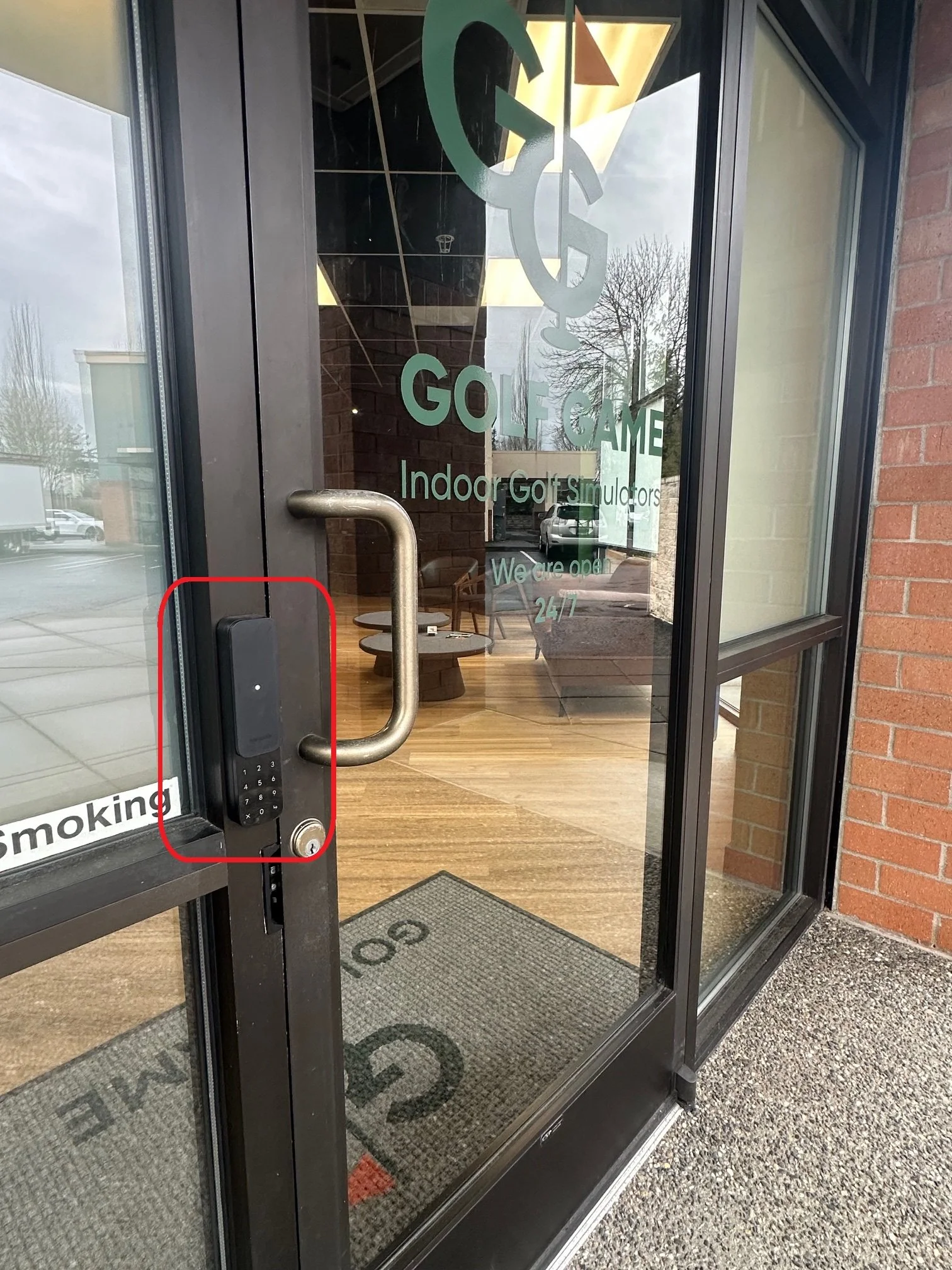
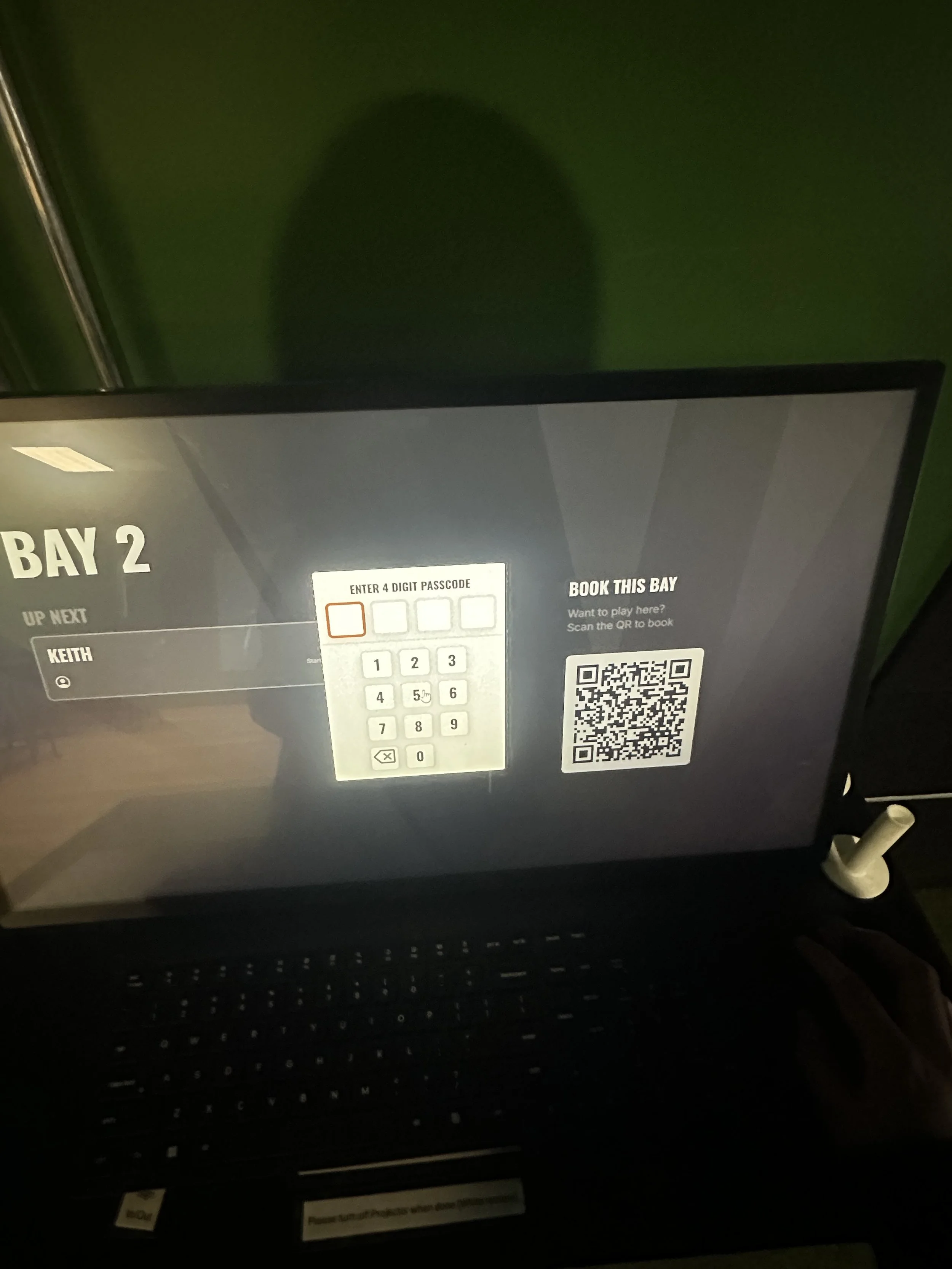
3) Once in the facility, hang out until your bay is open and your time slot has come. Click on “Start”.
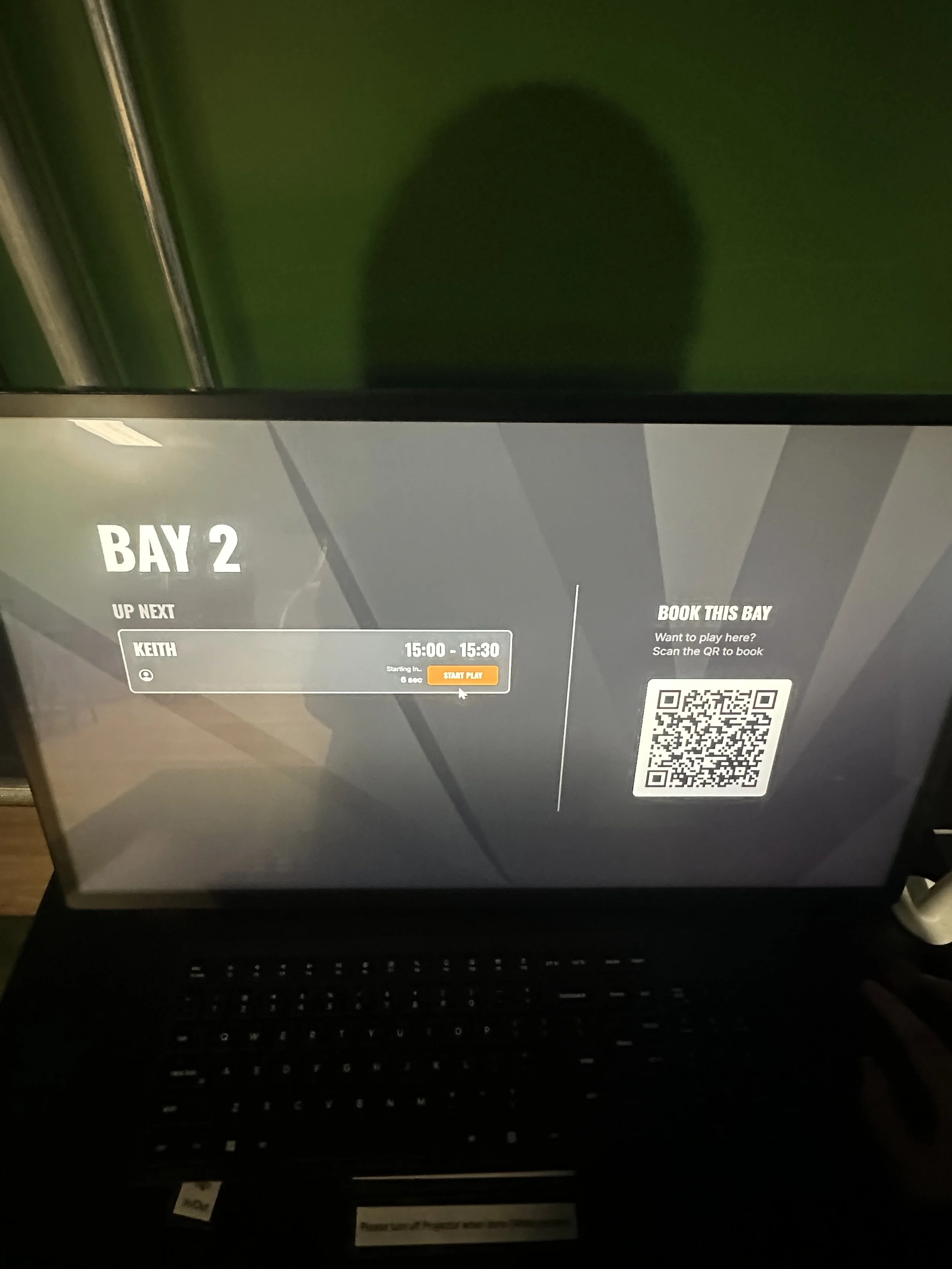
4) Use the temporary “Lock Screen Pin” from the email to unlock the bay to start your tee reservation!